
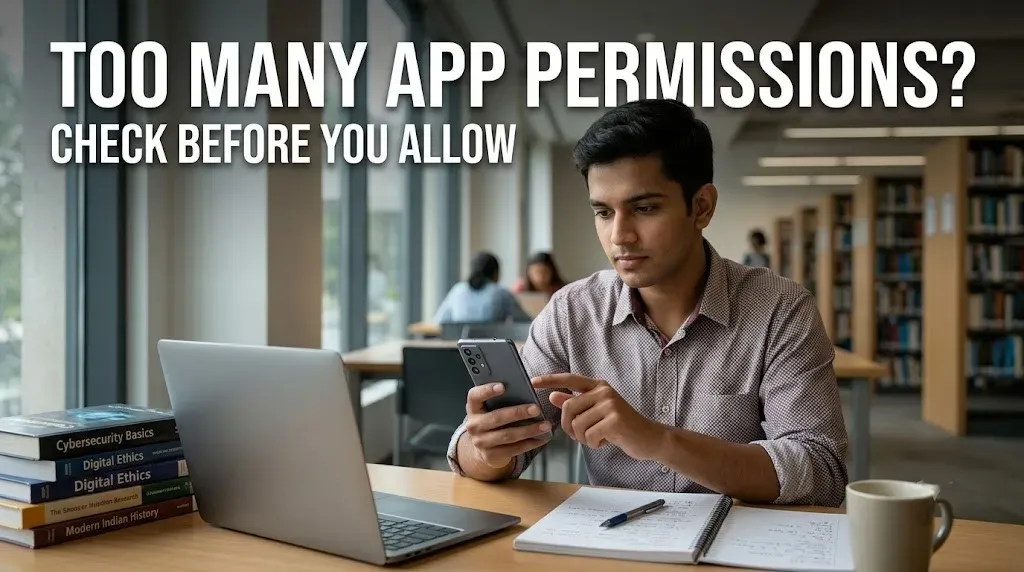
Downloading an education app usually feels harmless. You need it for classes, notes, tests or video lectures, so when the app asks for permissions, it is easy to tap “Allow” and move on. But some permissions can give an app access to information that has little connection with its main purpose.
Start by checking exactly what the app wants to access. Camera access can make sense for scanning documents or attending a live class. Microphone access may be needed for speaking during a session. Location or contacts, however, may deserve a closer look if the app's main purpose is simply reading notes or watching lectures.
| Permission | What Students Should Check |
|---|---|
| Camera | Does the app actually need photos or video? |
| Microphone | Is voice or live communication part of the service? |
| Contacts | Why would a study app need your contact list? |
| Location | Is location genuinely required for the feature? |
Students should also check the app's privacy information before signing up. On Google Play, the Data Safety section gives users information about how an app says it collects, shares and handles data. Reading this before installation can help you spot unnecessary data collection.
You can review permissions later too. On Android, students can open Settings, select the app and check its permissions. On iPhone, privacy settings allow users to review which apps have access to information such as photos, contacts, camera and microphone.
If an education app works without a particular permission, there is little reason to give it access just because the app asks. Choose the minimum access you are comfortable with and change the setting later if a genuine feature needs it.
The next time an app asks for several permissions at once, take a few seconds to read them. A useful habit is to ask yourself one simple thing: “Does this permission make sense for what I am using this app for?”